
Guide / interface, honestly
Order management system UI
Whether you are choosing a system or sketching one, a good order management UI is judged by what it shows at each step — and by what it refuses to make you hunt for. Here is the screen-by-screen breakdown, with BSimple's real interface described rather than mocked up.
The key facts
- The screen that matters first: the order list that answers "what needs action?" — not a dashboard of vanity charts.
- The step screens: order detail, pick and pack, approval, and the customer's own view — each with one job.
- BSimple's UI: real product screens in the browser, not redesigns — the trial shows them on your data, which is the only demo that cannot lie.
- For designers arriving here: this is a product, not a UI kit — but the step breakdown below is the honest brief for any order management interface.
- 01The key facts
- 02The four screens any order management UI needs
- 03The screen people forget: the customer's own view
The four screens any order management UI needs
The order list. The home screen of the whole system: orders with their state — new, picking, packed, approved, invoiced, paid — sortable by what needs action now. The test of a good list: a person who has never seen it can answer "what should I do next?" without training. Everything else is supporting cast.
The order detail. One order, everything about it: the customer and their pricing, line items with live availability, delivery details, the movement history with timestamps and the account behind each change. When something goes wrong — a short pick, a pricing query — the detail screen is where the argument ends, because the history is attached.
The pick-and-pack view. Built for the floor, not the office: items in pick sequence, quantities and locations, packing slips produced from the same record. Big type, few fields, no nesting — warehouse screens live or die on glanceability.
The approval step. The deliberate moment before quantities commit and the invoice is pushed to accounting: who approved, when, and what changed since the order was placed. Interfaces that hide this step behind automation remove the accountability that makes the record trustworthy.
The screen people forget: the customer's own view
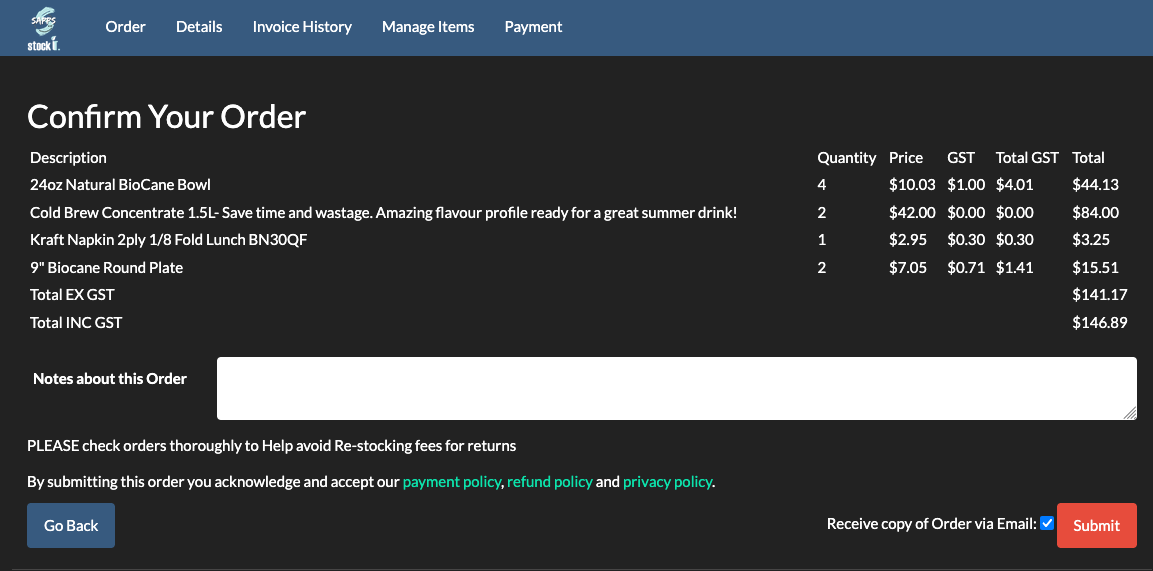
The best order UI for a wholesale business is the one your customer uses without calling you. BSimple's customer ordering portal gives each buyer a unique secret link — no passwords — showing their own product list, their own pricing, their order history and current order status. From the customer's side it is deliberately narrow: their slice of the record, not your warehouse. From your side, every order placed there lands captured correctly, with no transcription step between "the customer ordered" and "the warehouse picked".
The honest way to see any of this: we build BSimple, so weigh that — but the trial runs the real screens on your real products, and the order management guide walks the full path the screens serve. For the definitions behind the interface, what order management software is comes first.
Frequently Asked Questions
What should an order management UI show first?
The order list sorted by what needs action — new orders, picks due, approvals waiting. Dashboards are pleasant; the list is where the day actually happens.
Can I see BSimple's UI before buying?
Yes — the trial is the full product in the browser on your own data, which beats screenshots: your products, your orders, your workflow. This page deliberately describes rather than mocks up.
Do customers see the same interface?
No — customers see their own portal: their products, their pricing, their orders, through a unique secret link. The staff record and the customer view are different slices of the same data.
Is BSimple's UI mobile-friendly?
It runs in the browser on any device, including tablets on the floor. The honest test is your team's daily loop on your devices — which the trial exists for.
BSimple