
Customer order → fulfilled invoice
Order management that keeps fulfilment moving
Track each customer order from submission through review, fulfilment and approved invoice—without losing the handoff between teams.
Start your free trialThe handoff
- 01Customer orderPricing, history and payment details ready
- 02FulfilmentReview, print, pick, pack and dispatch
- 03Approved invoiceInventory updated and invoice sent from Xero
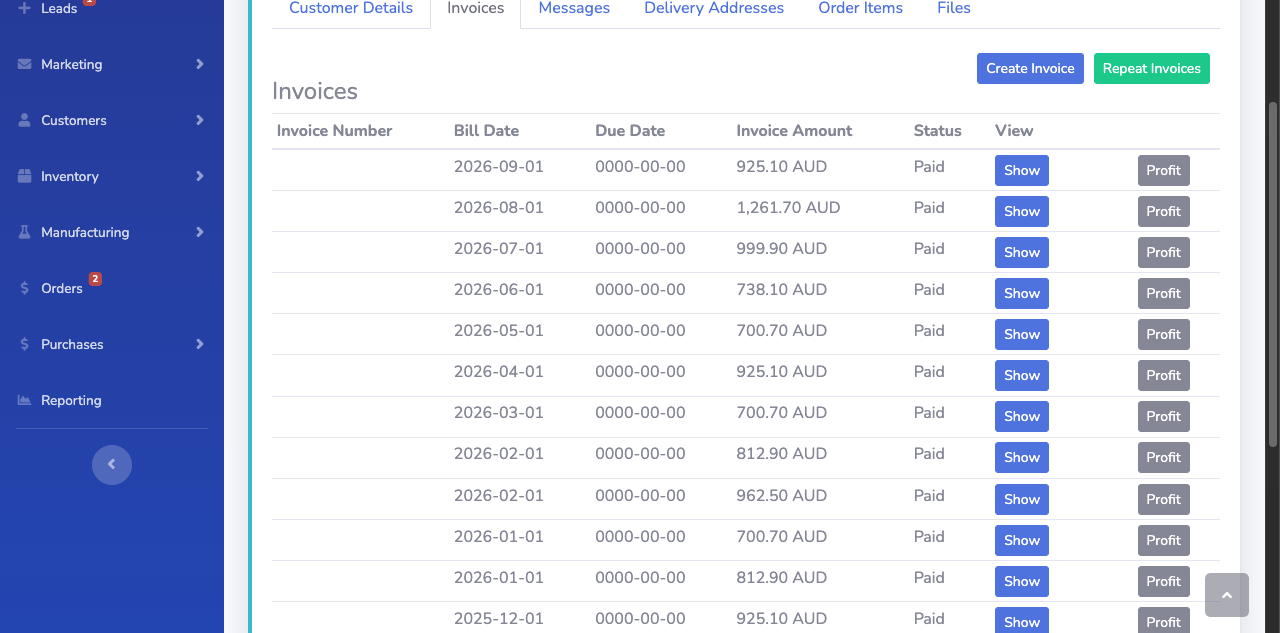
The order handoff
Turn customer demand into a repeatable fulfilment flow
Order management should make the next action obvious to every person involved. BSimple gives customers a simple way to order, then gives your team the statuses, documents and checks needed to fulfil accurately.
- One order record from submission to approval
- Print-ready documents for the warehouse
- Xero-ready invoices after fulfilment
Live walkthrough
Watch an order become an approved invoice.
From customer order to approved invoice in one pass.
Customer ordering
Customer order, captured once
Consider “start” the point where the customer decides they need to order coffee, packaging or another product. They may be responding to an SMS sent from your ordering system to create the incentive to order. From there, BSimple tracks the steps they take and the internal processes required to deliver the product into their hands, whether directly or through a third party.
A scheduled SMS or email invitation sends the customer to their unique order link, where their pricing, order history and payment details are already available. They can submit the order, receive a copy for their own tracking, and automatically send the business a copy for processing.
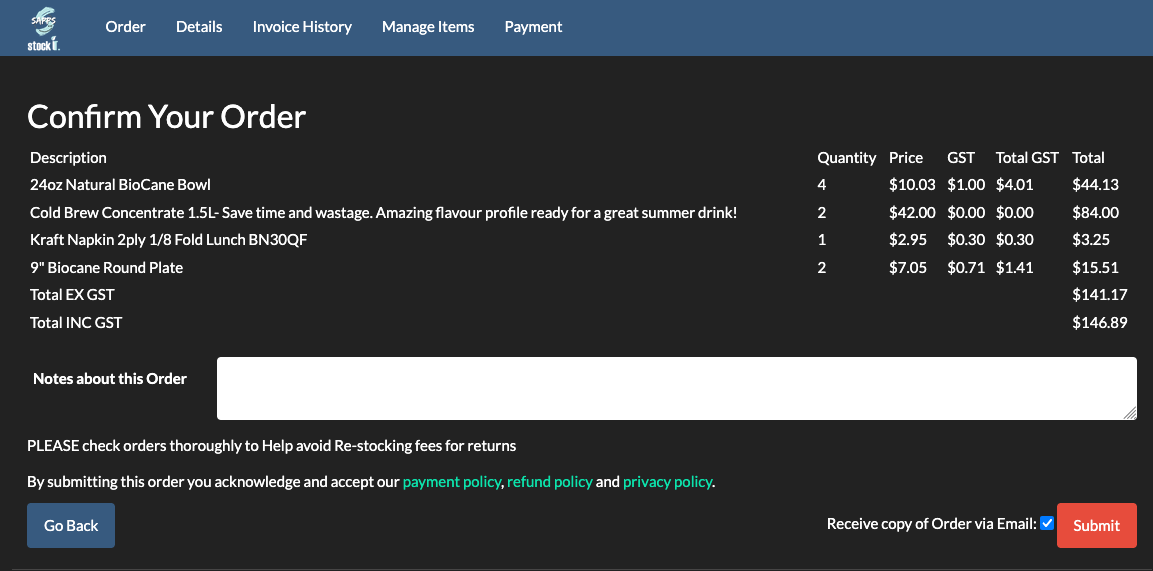
- 01Invite
Send the customer to a unique order link by SMS or email.
- 02Recognise
Show their pricing, order history and payment details.
- 03Hand over
Give the customer a copy while the business receives the order for processing.
02 / control the handoff
From invitation to fulfilment control
BSimple turns the customer response into a working order record rather than another message for someone to re-enter. The team can adapt the process to suit a coffee roaster, packaging company or other product business, while keeping the handoff visible.
- Customer invitation: Send a weekly SMS or email, or invite a customer more or less often as required.
- Order record: Keep the customer’s pricing, order history, payment details and submitted items together.
- Internal status: Move the order through review, printing, manufacture or pick and pack, dispatch and invoice approval.
- Warehouse handoff: Give the team a print-ready invoice or delivery slip so the physical work follows the checked order.
- Accounting handoff: Approve the invoice only after changes are resolved, then send it to the customer from Xero.
- 01Order recordKeep the submitted items and customer context together.
- 02Warehouse documentPrint the checked invoice or delivery slip.
- 03Approval gateCorrect mistakes before the invoice changes inventory.
03 / fulfil the order
Fulfil the order in six controlled steps
The exact sequence will differ between businesses, but the control points below keep the customer promise connected to the stock and invoice record.
- 01
Order review
Check the order for obvious mistakes, such as 99 items ordered instead of 9. A person familiar with the customer, products and invoices should complete this check before the order moves to the warehouse.
- 02
Printing
Once the order has been validated, send it to the printer as an invoice or delivery slip so the next person has a working document.
- 03
Manufacture, pick and pack
Manufacture the required product where necessary, then pick and pack the order against the printed invoice or delivery slip ready for shipping.
- 04
Shipping label
When the order is ready, place the shipping request, attach the label and leave it for collection. If the business delivers directly, replace this step with loading the van.
- 05
Final invoice approval
For courier orders, approve the invoice once it is labelled. For manual deliveries, build in feedback from the driver, pick-and-pack team and customer. Fix mistakes before approval so inventory remains accurate: remove items from the draft invoice, or create a new order for extras and join the draft invoices before reprinting.
Once everyone is satisfied, approve the invoice so it affects inventory, then email it to the customer from Xero.
- 06
Schedule payment
Schedule the approved invoice for collection on the due date, or as agreed with the customer. This supports cash flow and gives the customer a more consistent ordering and payment process.
To go deeper, see how orders tie to stock in inventory management, or how the invoice lands in the ledger in Xero inventory management.
The next order