Understanding How To Track Inventory In Excel With A Barcode Scanner

Practical guide to How To Track Inventory In Excel With A Barcode Scanner for Australian businesses. Streamline operations with Xero integration, automated o...

Prefer to talk? Call 1300 980 598
  • USB and wireless barcode scanners integrate seamlessly with Excel without requiring special software installation or configuration
  • Automated quantity updates and low-stock alerts using Excel formulas and conditional formatting to flag reorder requirements
  • Multi-location inventory visibility when spreadsheets are stored in cloud services like OneDrive or Google Drive
  • Timestamped scan records providing audit trails for EOFY stocktakes and GST compliance documentation
  • Customisable spreadsheet templates tailored to wholesale, manufacturing, or distribution business requirements
  • Real-time inventory value calculations using unit cost formulas for financial reporting and stock valuation
  • Scalable approach that works initially but transitions smoothly to dedicated systems as business complexity grows

Tracking inventory with Excel and a barcode scanner can be a game-changer for Australian wholesale, manufacturing, and distribution businesses looking to streamline operations without massive upfront investment. While Excel isn't purpose-built for inventory management, combining it with barcode scanning technology creates a surprisingly effective system that many small to medium-sized enterprises rely on daily.

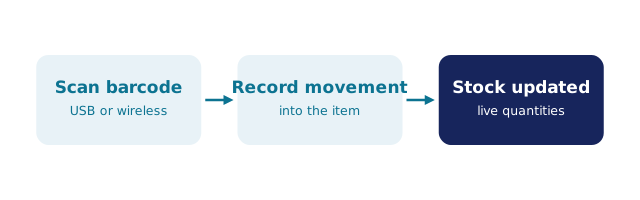
The basic concept is straightforward: barcode scanners read product codes and input data directly into your Excel spreadsheet, eliminating manual data entry and reducing human error. Instead of typing product numbers, quantities, and locations by hand, your team simply scans barcodes, and the information populates automatically. This approach works particularly well for businesses like Sydney coffee roasters managing bean inventory or Melbourne breweries tracking stock across multiple storage locations.

Setting up this system requires three key components: a barcode scanner (USB or wireless), an Excel spreadsheet with proper formatting, and a clear inventory tracking structure. The scanner acts as a keyboard input device, so when someone scans a barcode, it types the code into whatever cell is active in Excel. This means you can create simple formulas that automatically update quantities, flag low-stock items, and calculate inventory value.

For Australian SMBs managing EOFY stocktakes or GST compliance, this method provides documented audit trails that accountants appreciate. You'll have timestamped records of every scan, making reconciliation straightforward when your Xero accountant needs to verify stock levels. However, it's worth noting that while Excel works as a starting point, dedicated inventory management software with barcode integration offers significantly more functionality as your business scales.

The beauty of the Excel-plus-barcode approach is its flexibility. You can customise spreadsheets to match your exact workflow, whether you're tracking raw materials, finished goods, or work-in-progress inventory. Many businesses start here, then graduate to more sophisticated systems once they understand their specific inventory needs. While you're still in spreadsheet mode, our free inventory in Excel or PDF page lists templates you can adopt today, and teams moving into warehouses should read the warehouse management software guide before upgrading.

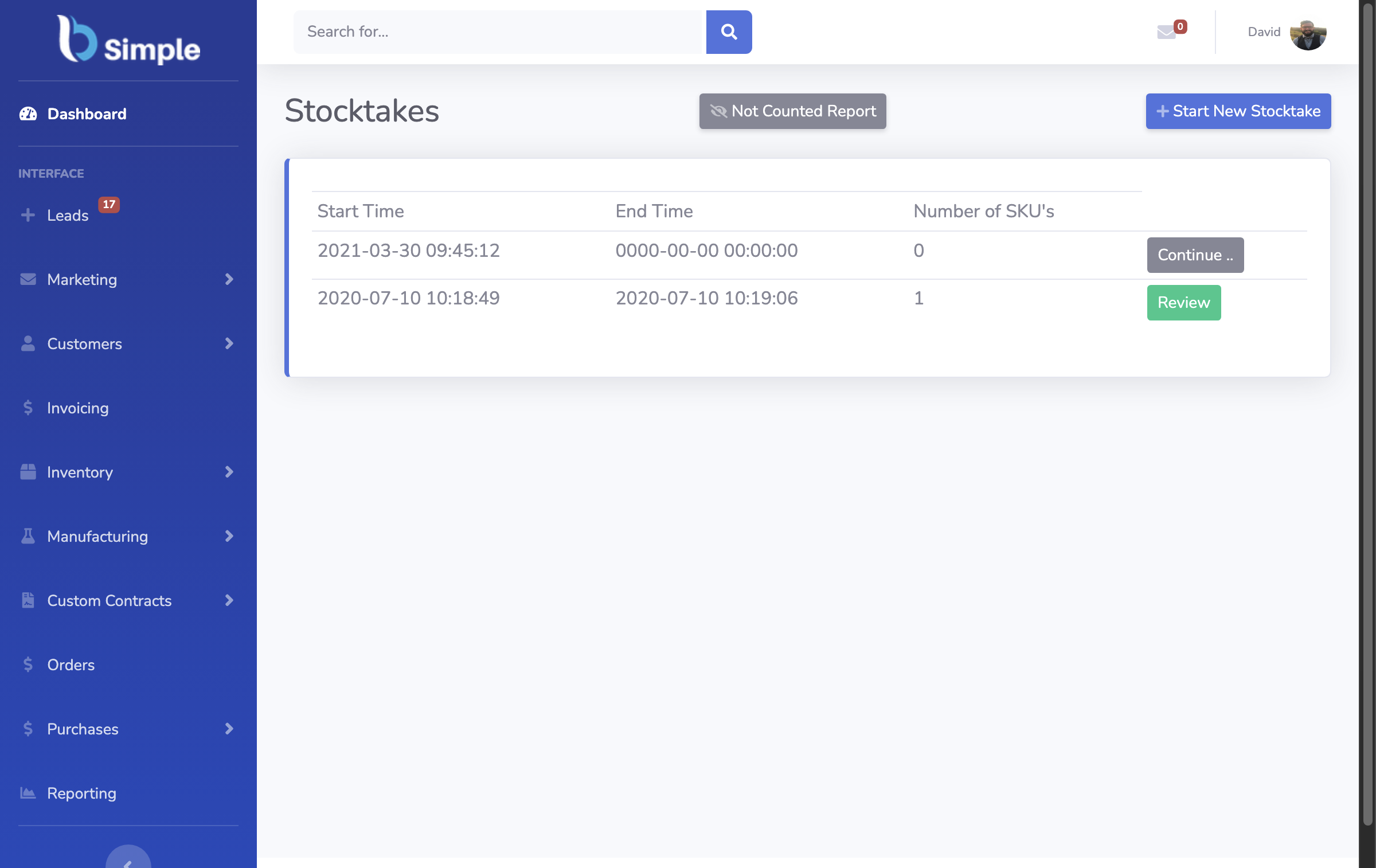
BSimple inventory management dashboard

Getting Started With Excel Barcode Inventory Tracking

Setting up your Excel barcode tracking system properly from the start saves enormous headaches down the track. The foundation is a well-structured spreadsheet with clear column headers and consistent formatting that your team can follow reliably.

Start by creating columns for essential data: Product Code (what the barcode represents), Product Name, Quantity On Hand, Location/Bin, Unit Cost, Total Value, and Date Last Scanned. Additional columns might include Reorder Level, Supplier, and SKU if you're managing multiple product variations. This structure allows you to see at a glance which items need reordering and where everything lives in your warehouse or storage area.

When setting up formulas, use simple multiplication for inventory value (Quantity × Unit Cost) and conditional formatting to highlight items below reorder levels in red. This visual alert system means your team spots low-stock situations immediately without manually reviewing every row. For businesses managing just-in-time inventory, this automated flagging is invaluable—you'll never miss a reorder deadline.

The scanning process itself requires training. Ensure your team understands that the scanner must be pointed at the barcode and the Excel cell must be active (selected) before scanning. Most scanners include a carriage return, meaning the cursor automatically moves to the next row after each scan. This creates an efficient workflow where your team can scan multiple items consecutively without touching the keyboard.

One critical consideration for Australian businesses: ensure your Excel file backs up regularly. Use cloud storage like OneDrive or Google Drive so that if someone's computer crashes, you haven't lost your inventory records. Many businesses pair Excel tracking with Xero integration capabilities to ensure their accounting records match physical inventory counts, particularly important for GST compliance and financial reporting.

Consider creating separate sheets within one workbook for different product categories, locations, or time periods. This keeps files manageable and prevents accidental overwrites. Use sheet tabs clearly labelled by location (Sydney Warehouse, Melbourne Distribution Centre) or product type (Raw Materials, Finished Goods) so team members find the right sheet quickly.

Talk to us

BSimple inventory control software

Choosing The Right Barcode Scanner Hardware

Barcode scanner hardware comes in several varieties, each with different advantages depending on your operation's size and complexity. Understanding the options helps you choose the right tool for your business.

USB-connected scanners are the most affordable and straightforward option. They plug directly into your computer or laptop, require minimal setup, and work immediately with Excel—no drivers or software installation needed. These work brilliantly for small operations with inventory management happening at a single desk or checkout area. A Melbourne brewery managing bottle stock or a Sydney coffee roaster tracking bean deliveries could easily operate with a basic USB scanner costing under $100.

Wireless scanners offer greater flexibility, particularly for larger warehouses or distribution centres where you need mobility. Your team can scan items from different locations without being tethered to a desk. However, wireless models cost more (typically $200-500) and require battery management and occasional troubleshooting. For Australian manufacturing facilities with sprawling warehouse spaces, wireless scanning often justifies the investment through improved efficiency.

Mobile barcode scanning apps represent another option—your team uses smartphones or tablets with barcode-reading apps that sync to Excel via cloud services. This approach works well for smaller operations and provides flexibility, though data synchronisation requires careful setup to prevent duplicate entries or missing scans.

Regardless of hardware choice, ensure your barcodes are clear and consistent. Use standard barcode formats (Code 128 or EAN-13) that your scanner recognises reliably. Print barcodes clearly on labels and position them where they're easy to scan without damaging products. Many businesses generate their own barcodes using free online tools or Excel add-ins, assigning unique codes to each product variant.

For businesses considering scaling beyond Excel, order management systems with integrated barcode scanning offer seamless workflows that synchronise scanning data directly with your inventory records, eliminating manual Excel updates entirely. This becomes particularly valuable when managing customer ordering portals or automated PO generation across multiple locations.

Learn more

BSimple order management interface

When Excel Inventory Tracking Reaches Its Limits

While Excel-plus-barcode scanning works reasonably well for basic inventory tracking, it comes with genuine limitations that become increasingly problematic as your business grows. Understanding these constraints helps you decide whether this approach suits your needs long-term or whether you should plan an upgrade sooner.

The most significant limitation is real-time visibility across multiple locations. If you're operating a distribution business with warehouses in Sydney and Melbourne, Excel files on individual computers don't automatically sync. Team members in different locations end up working with outdated information, leading to overselling, stock-outs, or duplicate orders. Manual file sharing via email creates version control nightmares where someone accidentally overwrites the latest data with an older version.

Excel also struggles with negative inventory tracking—a critical issue for manufacturing businesses managing work-in-progress materials. If you allocate materials to a production order before they're physically scanned out, Excel doesn't automatically prevent overselling. You end up with negative stock numbers that require manual investigation to resolve. Dedicated inventory systems flag these situations immediately and prevent orders that would create shortages.

Audit trails and compliance create another headache. While Excel records exist, they don't automatically timestamp who made changes or when. For EOFY stocktakes and GST compliance, auditors prefer systems with locked records and clear change histories. Excel's flexibility, ironically, becomes a weakness—anyone can edit any cell without leaving a trace, making it difficult to explain discrepancies.

Data analysis becomes tedious as well. Generating reports on inventory turnover, slow-moving stock, or seasonal trends requires manual pivot tables and formula work. Businesses managing complex product portfolios spend hours creating reports that dedicated systems generate automatically. For Australian SMBs juggling multiple priorities, this time drain is genuine.

When you're ready to move beyond Excel, BSimple's inventory management software combines barcode scanning with Xero integration, providing real-time visibility across locations, automated negative inventory prevention, comprehensive audit trails, and built-in reporting. The transition from Excel is straightforward—you import your existing data and immediately gain functionality that transforms how you manage stock. Many businesses find that upgrading pays for itself within months through reduced errors, faster stocktakes, and better decision-making based on accurate inventory data.

Register for a free trial

BSimple purchase order workflow

Frequently Asked Questions

Can any barcode scanner work with Excel?

Yes, most USB barcode scanners work with Excel immediately without special drivers. The scanner acts as a keyboard input device, typing the barcode number into whichever cell is active. Wireless scanners require battery charging but offer greater warehouse mobility. Test your specific scanner model with Excel before purchasing to ensure compatibility with your setup.

How do I prevent duplicate barcode entries in Excel?

Use Excel's Data Validation feature with a unique list formula, or create a simple formula checking if the scanned code already exists. Many businesses add a timestamp column (using NOW() function) to identify when duplicates occurred, then manually review them. However, dedicated inventory software prevents duplicates automatically through database constraints.

What barcode format should I use for Excel tracking?

Code 128 and EAN-13 are industry-standard formats that most scanners recognise reliably. Choose one format consistently across your business. You can generate barcodes free online or using Excel add-ins, then print them on labels. Ensure barcodes are clear and positioned where they're easy to scan without damaging products.

How do I sync Excel inventory across multiple locations?

Store your Excel file in OneDrive or Google Drive so all locations access the same document. However, this creates version control risks if multiple people edit simultaneously. For true multi-location inventory management, dedicated software like BSimple with Xero integration provides real-time synchronisation and prevents conflicting edits.

Is Excel inventory tracking suitable for manufacturing businesses?

Excel works for basic manufacturing inventory but struggles with work-in-progress tracking and negative inventory prevention. Manufacturing businesses benefit significantly from systems offering just-in-time inventory management, automated PO generation, and negative inventory tracking that prevents production delays from stock shortages.

How do I handle EOFY stocktakes with Excel barcode scanning?

Create a separate stocktake sheet with your current inventory, then scan physical items and compare actual counts to recorded quantities. Document discrepancies clearly. However, Excel doesn't provide audit trails that accountants prefer. Systems with locked records and timestamped changes make EOFY compliance and GST reconciliation significantly easier.

When should I upgrade from Excel to dedicated inventory software?

Consider upgrading when managing multiple locations, handling complex product variations, needing real-time reporting, or spending significant time on manual data entry and reconciliation. If your business has grown beyond 50-100 SKUs or you're experiencing stock discrepancies, dedicated software typically pays for itself through improved accuracy and time savings.